 DEVELOPING COLOR

Lightroom preset guide
How to Install PresetsPhone and Desktop.
Download from your order, unzip, then import the .xmp files into Lightroom Mobile, Lightroom on desktop, or Lightroom Classic.
Start here
Get Your Files
After you buy, download your pack from the link in your order email, or open your order page and download again. You do not need a third-party account. Apps need the .xmp files inside the .zip, so unzip it first.
Mac
Double-click the .zip in Downloads. A folder with the .xmp files appears next to it.
Windows
Right-click the .zip and choose Extract All, then click Extract.
iPhone & iPad
Open the download in Safari. In the Files app, go to Downloads and tap the .zip to unzip it. Keep the .xmp files in On My iPhone / On My iPad so Lightroom can find them.
Android
Open the .zip in your files app, for example Files by Google, and tap Extract. Note where the .xmp folder lands.
Editing on your phone but downloaded on a computer? AirDrop or copy the unzipped folder to your phone. Keep the files you bought for yourself; they are licensed to you and cannot be shared.
Pack 01
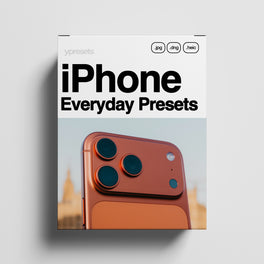
iPhone Everyday Lightroom Presets
For everyday iPhone photos — people, travel moments, soft daylight, and the shots you take without thinking about it. Works in the free Lightroom Mobile app and in Lightroom or Lightroom Classic on desktop.
Next
Install, then apply
Download your files from your order email or order page, unzip them, then follow the app steps below.
Pack 02
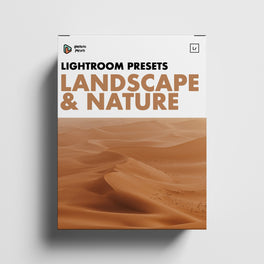
Landscape & Nature Lightroom Presets
For outdoor photography — mountains, coast, forests, golden hour, and travel landscapes. Made for photos from any camera you edit in Lightroom, especially RAW, plus JPEG.
Next
Install, then apply
Download your files from your order email or order page, unzip them, then follow the app steps below.
Pack 03
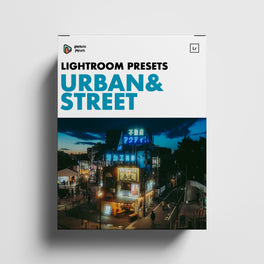
Urban & Street Lightroom Presets
For city photography — street scenes, architecture, night city lights, and urban travel. Made for photos from any camera you edit in Lightroom, especially RAW, plus JPEG.
Next
Install, then apply
Download your files from your order email or order page, unzip them, then follow the app steps below.
Pack 04
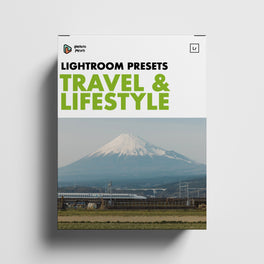
Travel & Lifestyle Lightroom Presets
For travel and lifestyle photos — trips, people, and everyday moments on the road. Made for photos from any camera you edit in Lightroom, especially RAW, plus JPEG.
Next
Install, then apply
Download your files from your order email or order page, unzip them, then follow the app steps below.
Pack 05
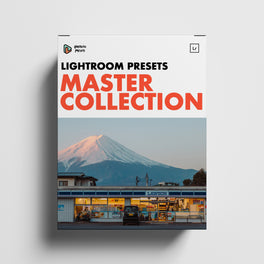
The Master Collection Lightroom Presets
All four packs in one collection: Landscape & Nature, Urban & Street, Travel & Lifestyle, and iPhone Everyday. One download covers every look in the Ypresets Lightroom library.
Next
Install, then apply
Download your files from your order email or order page, unzip them, then follow the app steps below.
Apps
Pick Your App
Ypresets presets are modern .xmp files. They work in the free Lightroom Mobile app, Lightroom on desktop (cloud), and Lightroom Classic. Pick the app you edit in.
Phone · Free app
Lightroom Mobile
The free Lightroom app on iPhone and Android can import .xmp presets. Unzip first — Lightroom cannot open a .zip directly.
Import .xmp presets
- Unzip your download in the Files app (iPhone) or your files app (Android) so you can see the .xmp files.
- Open Lightroom and open any photo to enter the detail view.
- Tap Presets in the Edit panel.
- Go to Yours, open the options menu (•••), and tap Import Presets.
- Navigate to your unzipped .xmp folder, select the files, and confirm.
Imported presets appear under Presets → Yours → User Presets (or the group name Lightroom creates for that import).
Apply a preset and adjust the amount
- Open a photo and tap Presets.
- Open Yours, find your Ypresets group, and tap a preset to apply it.
- If the look is too strong or too soft, use the Amount control when Lightroom shows it for that preset, or fine-tune with Light (Exposure) and Color.
DNG files: Some older packs also included .dng samples. You can import a .dng the same way (Presets → Import Presets), then save the look as your own preset if you want it in the list permanently. Prefer the .xmp files when both are present.
Computer · Cloud
Lightroom (Desktop)
This is the cloud Lightroom app (sometimes still called Lightroom CC). Presets you import here can sync to Lightroom Mobile when you use the same Adobe ID.
Import .xmp presets
- Unzip your download on the computer.
- In Lightroom, choose File → Import Profiles & Presets.
- Select the .xmp files (or a .zip that contains only presets, if your version accepts it) and click Import.
Find them under Edit → Presets → Yours (Saved / User Presets). Sign in with the same Adobe ID on your phone so synced presets can appear in Lightroom Mobile.
Apply a preset and adjust the amount
- Open a photo and go to Edit.
- Open Presets, choose Yours, and click a preset.
- Use the Amount slider when it is available to soften or strengthen the look, then tweak Light and Color as needed.
Computer · Catalog
Lightroom Classic
Lightroom Classic keeps presets with your Develop module. Classic does not sync the full preset library to Lightroom Mobile — import the same .xmp files into Lightroom (desktop) if you also edit on your phone.
Import .xmp presets
- Unzip your download on the computer.
- Open the Develop module.
- In the Presets panel, click the + icon and choose Import Presets.
- Select your .xmp files or a .zip of presets, then click Import.
Presets appear in the Presets panel (often under User Presets or a named group). No restart is usually required. Leave Store presets with this catalog unchecked in Preferences unless you intentionally want presets tied to one catalog.
Apply a preset and adjust the amount
- Select a photo in Develop.
- In the Presets panel, click a Ypresets preset to apply it. Hover to preview first if you like.
- Use the Amount slider at the top of the Presets panel when it is enabled for that preset to dial the strength up or down.
Older .lrtemplate files: Classic can still import legacy .lrtemplate presets and converts them. Lightroom (cloud) and Mobile will not use .lrtemplate — use the .xmp set for those apps.
Help
Troubleshooting
I do not see my presets
Unzip first, then import the .xmp files — not the .zip. In Classic, confirm you are in the Develop module and that the preset group is visible (not hidden). In Preferences, avoid Store presets with this catalog if you switch catalogs. In Mobile, look under Presets → Yours.
Presets on desktop do not show on my phone
Lightroom Classic does not sync presets to Mobile. Import the same .xmp files into Lightroom (desktop) with File → Import Profiles & Presets, stay signed in with the same Adobe ID, and wait for sync. Or import the .xmp files directly in Lightroom Mobile.
Can I import a .zip on my phone?
No. Unzip in Files (iPhone) or your files app (Android), then import the .xmp files from Presets → Import Presets.
The Amount slider is greyed out
Some preset settings do not support Amount (for example certain black-and-white conversions). Soften the look with Exposure, Contrast, or other Light and Color controls instead.
I only have .lrtemplate or .dng files
Use .xmp whenever your download includes them. Classic can import .lrtemplate and convert it. Mobile and Lightroom (cloud) need .xmp (or a .dng imported as a preset). Prefer .xmp for a consistent library across devices.
The look is too dark, bright, or orange
Every photo is different. After you apply a preset, lower Amount if it is available, or adjust Exposure and white balance. That is normal fine-tuning, not a broken install.
Ypresets Lightroom presets
Got the Photos?Get the Look.
Presets for iPhone Everyday, Landscape & Nature, Urban & Street, Travel & Lifestyle, and the Master Collection.